Before connecting
- The Facebook & Instagram module must be enabled for your hotel. The central Meta app is configured and operated by the StaySend operator.
- You need a Facebook Page for your hotel. Sign in with the Facebook account that manages the Page and has sufficient permissions for messaging and the connection.
- For Instagram, you need a professional account (Business or Creator) linked to this Facebook Page. A private Instagram account is not sufficient for this integration.
- Each hotel can select one Facebook Page and its linked Instagram account. These accounts must not already be assigned to another StaySend hotel.
Set up step by step
- Sign in to your StaySend hotel account and open Hotel settings → Facebook & Instagram.
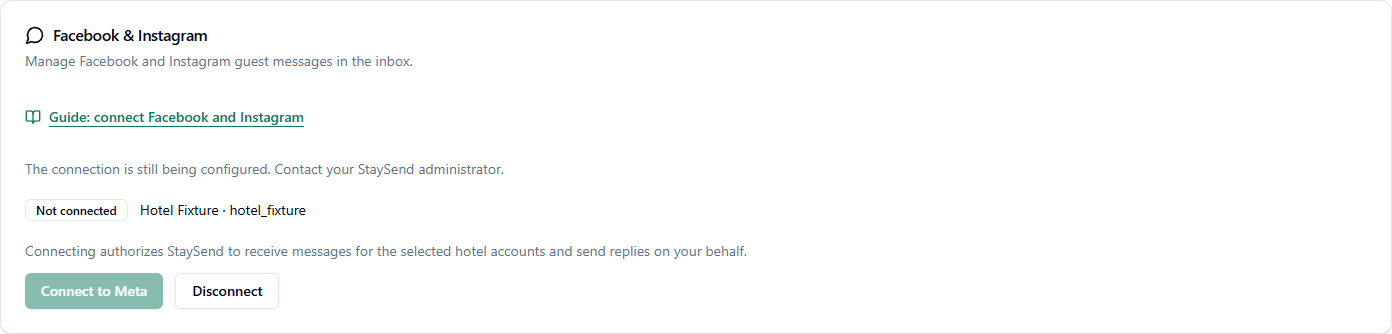
- Click Connect to Meta. If the button is disabled, read the advice under If the connection will not start.
- Sign in through Facebook login using the responsible Facebook account. Enter your Facebook password only on Facebook.
- Confirm the required access to the hotel Page and messaging accounts. Without these permissions, StaySend cannot receive guest messages or send replies.
- On returning to StaySend, select the hotel’s Facebook Page. Also check the linked Instagram account shown.
- Click Connect these accounts. Then check the Connected status and both account names.
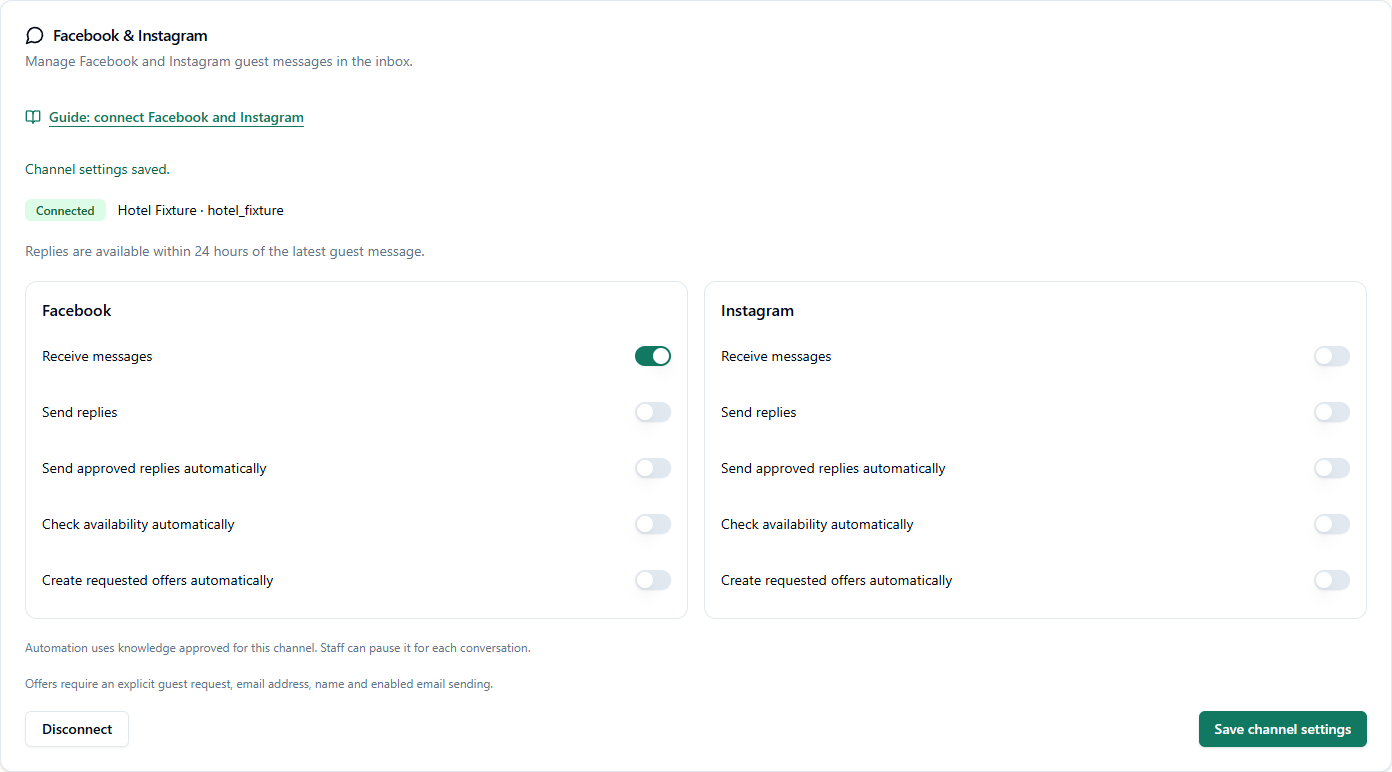
- Enable Receive messages and Send replies separately for Facebook and Instagram, for each channel you want to use. Click Save channel settings. Leave the automation switches off initially.
- Use an authorised test account to check a new message under Messages and reply manually. Test Facebook and Instagram separately before enabling further functions.
Enable receiving and replies
The five switches apply separately to Facebook and Instagram. Saving your selection alone does not remove a central sending or feature restriction; arrange any required activation with StaySend.
- Receive messages: Bring new guest messages from this channel into the inbox.
- Send replies: Allow manual replies from StaySend when the connection and reply window are valid.
- Send approved replies automatically: use shared knowledge approval for all chat channels. This channel’s automation and central approval must also be enabled.
- Check availability automatically: Allow the separately enabled availability check in the guest conversation.
- Create requested offers automatically: Prepare only explicitly requested offers with complete travel details, an email address and a name. Email sending and the offer function must also be enabled.
Automation and staff takeover
Enable automatic replies only after reviewing and approving current knowledge articles. Under “Hotel knowledge & AI”, select the shared “Automatic replies” permission once for the website, WhatsApp, Facebook and Instagram. Each channel’s receiving, sending and automation switches still apply.
Take over conversation in the inbox pauses automation for that conversation. It stays paused until a staff member selects Resume automation. Recognisable staff replies from Meta Business Suite also pause automation.
Complaints, personal service requests, booking changes and unresolved questions require staff review. An offer request does not constitute marketing consent.
Reply window and message history
Replies are allowed within 24 hours of the guest’s latest new message. After the window expires, sending is blocked until the guest writes again. StaySend shows the reply deadline and sending status in the inbox.
StaySend starts with new messages after connecting. Earlier conversations are not imported during the first connection. Facebook and Instagram histories remain separate.
If the connection will not start
- Connect to Meta is disabled: If The connection is still being configured appears, central setup is not ready. Contact your StaySend administrator and connect your accounts after activation.
- The Facebook Page is missing: Check that you are signed in with the correct Facebook account, manage the Page and have allowed the required access. Ask the responsible person to add missing Page permissions, then restart the connection.
- The Instagram account is missing: Check that it is professional and linked to the selected Facebook Page. Correct the association in Meta, then connect again.
- Reconnection is required or replies cannot be sent: Reconnect the accounts if permissions have expired or been revoked. Also check the saved channel switches and the 24-hour reply window. Contact StaySend if the problem continues.
If automation does not reply
- In ‘Facebook & Instagram’, check the central availability beside the hotel switch. A saved choice of ‘on’ is not enough when the function is blocked centrally. Contact StaySend about any missing approval.
- In ‘Hotel knowledge & AI’, check that the relevant articles are current, their content is approved and they are eligible. ‘Automatic replies’ must be saved under ‘Shared chat approval’. This one selection applies to the website, WhatsApp, Facebook and Instagram; separate Facebook or Instagram knowledge rules are not needed.
- After a manual staff reply, automation remains paused for that conversation. Open the conversation in the inbox and select ‘Resume automation’ if it should receive automatic replies again.
- Check the 24-hour reply window following the last new guest message. Once it expires, sending is blocked until the guest writes again. All other approvals must still be in place.